An Alternative to Editing the Hosts File for Website Preview
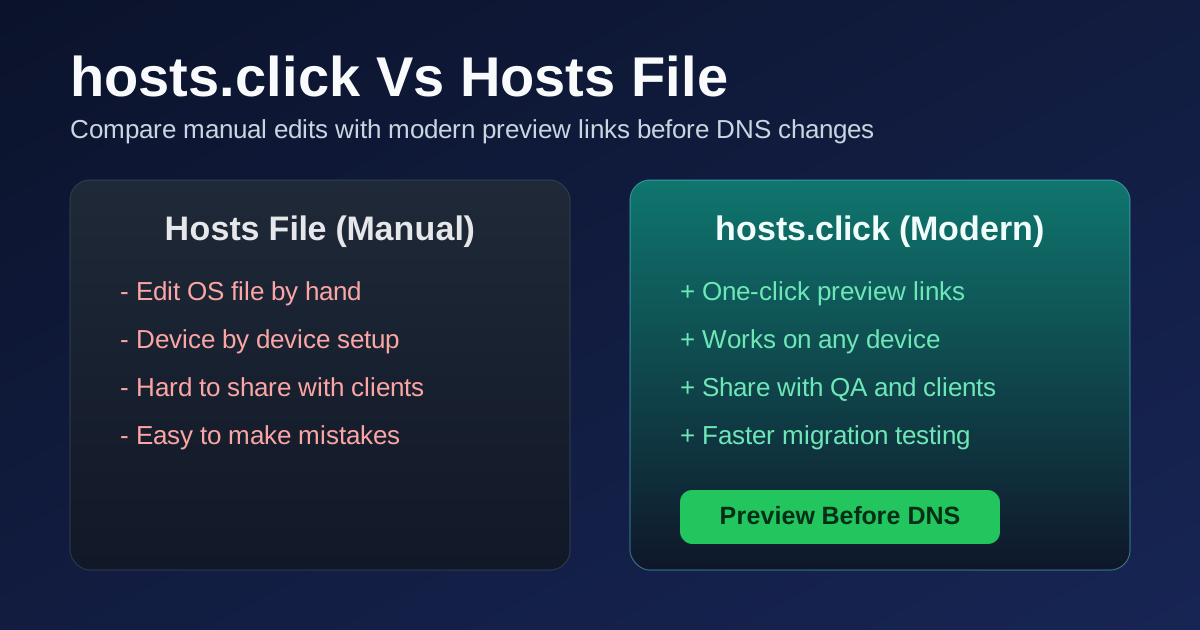
To preview a website on a new server before a DNS change, you can edit the hosts file on your computer, or you can create a preview URL with hosts.click. Both send your browser to the new server while your live DNS stays the same. They differ in who can use the preview, what traffic passes through a third party, and how much cleanup the test needs afterwards.
Test the new server before you change DNS. Open the free preview tool
This post compares the two methods and says when the hosts file is the better choice.
How each method works
The hosts file maps a name to an IP address on one computer. The hosts(5) manual describes the file as "a simple text file that associates IP addresses with hostnames, one line per IP address" (man7.org, hosts(5)). For a preview, you add a line that maps your domain to the new server's IP address:
192.0.2.10 www.example.comYour browser then connects to 192.0.2.10 for that domain, and the rest of the internet still uses the live DNS. Remove the line after the test.
A preview URL works in a browser. You enter the domain and the new server's IP address, and hosts.click creates a temporary link on a random subdomain. Requests to the link go to the new server. The preview guide explains the path in detail, including the Host header.
Comparison
| Question | Hosts file | hosts.click preview URL |
|---|---|---|
| Where the change happens | On your computer | In the browser, through a link |
| Who can use the preview | You, on that computer | Anyone you send the link to |
| Other people and devices | Still use the live DNS | Can open the link |
| Traffic path | Browser connects directly to the IP address you entered | Browser connects to the preview proxy, which forwards to the IP address you entered |
| Third party in the path | No | Yes, the preview proxy |
| Link or entry lifetime | Until you remove the line | Free links: 10 minutes. Pro: longer |
| Cleanup after the test | Remove the line, or the computer keeps the old mapping | Nothing to remove on your computer |
| Control panel step | None | Yes, through the cPanel and DirectAdmin plugins |
Neither method is complete on its own. A preview shows the new server, but it does not change the certificate, the DNS records or the email setup.
The case for the hosts file
The hosts file is the better choice in several cases.
- You want no third party in the path. The browser connects to the IP address you chose. Traffic does not pass through a proxy.
- You are testing on one machine. A single developer who needs to check one site can finish the test in minutes.
- You want to test without a link. Some reviewers prefer to work on their own machine, and the hosts file keeps the test there.
- You need an offline or internal test. A preview tool needs its own service to be running. A line in the hosts file does not.
When you use the hosts file, record the line you added and remove it when the test ends. A line you forget keeps sending that computer's traffic to the new server after the switch, and that can confuse later debugging.
The case for a preview URL
A preview URL is the better choice in these cases.
- Several people need the same preview. You send one link. Nobody edits a file.
- The reviewers use other computers or devices. A client or a content editor can open the link in a browser, with no setup.
- You use a control panel. The cPanel and DirectAdmin plugins add the preview step to the panel workflow. See the cPanel preview URL plugin and the DirectAdmin preview URL plugin.
- You want to leave your computer unchanged. Nothing in the system file changes.
Limits of a preview URL
A preview URL has limits that the hosts file does not have. Know them before you use it:
- Third-party path. Browser traffic to a preview URL goes through hosts.click's proxy. Do not use a preview link to test pages that carry data you would not share with a third party.
- Time limit. Free links expire in 10 minutes. The Pro plan keeps links live for days, at $5 a month.
- Domain-dependent behaviour. Some sites build links, redirects, cookies and canonical tags from the domain name. A page can behave differently on a preview URL than on the live domain. Test those pages on the live domain after the switch.
- Browser only. A preview URL is for browser checks. For scripted checks and header inspection, use
curl, as described below.
Using curl instead of either
If you need the response headers for a list of URLs, curl --resolve may be simpler than either method. The curl manual describes --resolve as a way to "provide a custom address for a specific host and port pair", and adds: "Consider it a sort of /etc/hosts alternative provided on the command line" (curl manual, --resolve).
curl -I --resolve www.example.com:443:192.0.2.10 https://www.example.com/The command changes no file, and it tests one URL per call. Use a loop in a script for a list of URLs. Nothing stays behind on the computer after the command ends.
Which one to pick
- One developer, one site, one test: the hosts file or
curl --resolveis enough. Remove any change when you finish. - Several reviewers, or a control panel workflow: use a preview URL.
- Scripted checks across many URLs: use
curl --resolve. - A test that must not pass through a third party: use the hosts file or
curl --resolve.
Whichever method you use, run the same checks on the live domain after the DNS switch. The migration checklist generator lists those checks for your hosts and panels, and the DNS propagation checker shows when resolvers return the new address.
What to check during any preview
- HTTPS. A preview does not install a certificate on the new server for you.
- Redirects from
http://, fromwwwto the bare domain, and from old URLs. - Links, forms and callbacks that point at the old host.
- Login and session behaviour, including cookies scoped to the domain.
- Mixed content and status codes on the key pages.
The server diff tool compares the old and new servers for status codes, headers, redirect chains and response content, so you can run these checks in one pass.
Sources
- hosts(5), Linux manual page, format of
/etc/hosts - curl manual, option
--resolve - RFC 9110, HTTP Semantics, section 7.2 (Host and :authority)
Fetched 2026-10-28, HTTP 200.
Improve Preview Workflows
Use these focused guides for DNS previews and control panel integrations.
Preview Website Before DNS Changes
Step-by-step workflow for testing on the new server before you switch DNS.
Preview website before DNS changescPanel Preview URL Plugin
Install script, usage steps, and troubleshooting for cPanel-based previews.
cPanel preview URL plugin guideDirectAdmin Preview URL Plugin
Integrate preview links directly in DirectAdmin with one install command.
DirectAdmin preview URL plugin guide